Last updated: October 13, 2026
Key Takeaways
- If Bing reports a URL crawl error, Bing tried to reach the page and could not complete the request cleanly.
- Bing Webmaster Tools is the first place to check Bing crawl errors.
- If the URL returns the wrong status code, the fix is technical.
- For a practical repair path, work outward from the error source: page response, redirect behavior, crawl rules, then sitemap cleanup.
If you are trying to check Bing crawl errors, start with Bing Webmaster Tools, confirm the live HTTP response, and fix the source problem before requesting validation. In How to check Bing crawl errors and fix them, the goal is to identify the exact error type, trace it back to the page or setting that caused it, and repair what Bing cannot crawl instead of guessing.
What Bing Crawl Errors Usually Mean
If Bing says a URL has crawl errors, then Bing tried to reach the page and could not complete the job cleanly. The problem may be a 404, a 500-series server error, a redirect loop, a blocked page, or a URL that resolves differently than the sitemap promised. Those are not the same thing, and treating them as one problem can waste time. If the diagnosis is unclear, consult a qualified SEO or web developer and cross-check Bing’s guidance in Bing Webmaster Tools documentation and Google Search Central on HTTP status codes.
A generic article would say “check your site” and stop there. That is too vague. The path changes depending on whether the URL exists, returns the wrong status code, or is hidden behind a rule in robots.txt. A 404 on a deleted product page needs a different fix than a 503 from overloaded hosting. One is content hygiene; the other is infrastructure.
Here is the simplest way to sort it:
| Situation | Best Path | Why Other Options Fail |
|---|---|---|
| Page returns 404 | Restore the page, 301 redirect it, or let it return 404 if it is truly gone | Submitting the URL again does not fix a missing page |
| Page returns 500/503 | Check server, app, and hosting logs first | SEO changes cannot repair a server outage |
Page is blocked by robots.txt |
Remove the block if Bing should crawl it | Canonical tags do not override robots.txt |
| Page is in a redirect chain | Collapse it to one direct 301 | Chains waste crawl budget and can fail |
| Page is crawled but not indexed | Inspect canonical, content quality, and noindex tags | Crawl success is not the same as indexing |
If the error is sitewide, start with the server. If it is isolated to a group of URLs, start with the pattern: one folder, one template, one parameter pattern, or one redirect rule. For example, if several unrelated pages fail at once, this is probably infrastructure; if one folder fails, this is probably a template or rules issue.
How to See Bing Crawl Errors in Bing Webmaster Tools
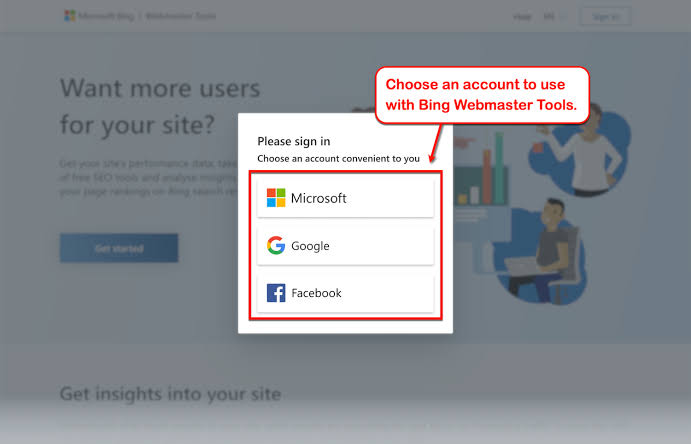
If you want Bing crawl errors, then Bing Webmaster Tools is where you look first. The report you need is in the site’s dashboard, and the exact labels can vary a little as Microsoft changes the interface, but the workflow stays the same: open the property, check crawl reports, inspect the affected URLs, and note the error type and date.
Start with these steps:
- Open Bing Webmaster Tools and select the correct site property.
- Go to the crawl or site health section and look for crawl error, crawl issue, or URL inspection reports.
- Sort by the number of affected URLs, last crawl date, or error type if the interface offers it.
- Click into one sample URL from each error group.
- Record the status code, the time Bing last saw it, and whether the page is blocked, redirected, missing, or timing out.
- Compare the URL against your sitemap, canonical tag, and live server response.
- Fix the underlying issue before asking Bing to recrawl.
A single report often hides multiple causes. For example, one folder may show “crawl issue,” but the real problem is that every page in that folder redirects three times before landing on the final URL. Another page may show as crawlable but uncrawlable because the server times out after 10 seconds. Those are very different repairs.
I would not start by resubmitting URLs unless the page is already fixed. A resubmission is useful after the repair, not before. If the URL inspection tool shows the live page is fine but the report still shows an old error, Bing may simply need another crawl cycle.
Useful checks while you are there:
- Look at the last crawl date. A stale report can lag behind your fix by days.
- Open a few examples, not just one. Patterns matter more than single URLs.
- Compare submitted URLs with what the server actually serves.
- Check whether the issue affects desktop-only, mobile-only, or both.
If Bing shows errors on many URLs from one folder, inspect that folder’s template, redirects, and server response first.
The 3 Conditions That Change the Fix
If the URL returns the wrong status code, then the fix is technical. If the content is gone on purpose, the fix is architectural. If the page exists but Bing cannot reach it, the fix is usually server-side or rule-based. Those three conditions decide almost everything.
1) The page is missing on purpose
If the content was removed and should stay removed, then do not force it back just to satisfy the crawler. Return a clean 404 or 410 and remove it from internal links and sitemaps. If there is a close replacement, use a 301 redirect to the most relevant page. Do not redirect every dead URL to the homepage; that creates a weak user experience and often confuses crawl signals.
2) The page should exist but returns 404 or 5xx
If the page should exist, then fix the URL mapping, routing rule, CMS slug, or server issue. Confirm the page with a direct browser request, then check the server response with a tool like curl, Chrome DevTools, or any HTTP status checker. A 500-series response means Bing is hitting a live failure, not an SEO problem. If it happens during spikes or deployments, the fix may be caching, worker limits, PHP errors, database lag, or a bad release.
3) The page is blocked or pointed wrong
If robots.txt blocks the URL, or a canonical tag points Bing somewhere else, then the crawl problem is often self-inflicted. A blocked page cannot be crawled, even if it exists. A canonical mismatch can make Bing ignore the page you wanted indexed. That is why I usually separate crawl access from index preference. They are related, but they are not identical.
A practical path for this section:
- Check the live URL in a browser and note whether it loads, redirects, or errors.
- Check the HTTP status code with an inspection tool or command-line request.
- Open `robots.txt` and confirm the path is not blocked.
- Inspect the canonical tag on the page.
- Compare the page against the sitemap entry.
- Fix the cause that matches the status: restore content, repair routing, or remove the block.
- Request recrawl after the page returns the intended response.
If the page is intentionally gone, use 404/410 or a targeted 301; if it should exist, treat the error as a server or routing defect and, if needed, consult a professional.
How to Fix Bing Crawl Errors Step by Step
If you need a practical repair path, then work from the source of the error outward: page response, redirect behavior, crawl rules, then sitemap cleanup. That order saves time because it fixes the thing Bing actually sees.
- Pull a clean sample list. Export the affected URLs from Bing Webmaster Tools and group them by error type: 404, 5xx, blocked, redirected, or timeout.
- Check one URL from each group. Use the live page, the URL inspection tool, or a command-line request to confirm the real response. A page that “looks fine” in a browser can still send the wrong status code.
- Fix the server-side cause first. Repair broken routes, database failures, template errors, or hosting limits before touching SEO tags. If the server fails, Bing cannot get a clean crawl.
- Simplify redirects. Replace chains with one 301 redirect to the final destination. Keep the destination relevant. A redirect that lands on the wrong topic is still a bad fix.
- Remove accidental blocks. Check `robots.txt`, meta robots tags, X-Robots-Tag headers, and firewall rules. A single “Disallow” line can hide an entire directory.
- Update sitemap URLs. Remove dead URLs, submit only canonical live URLs, and make sure the sitemap reflects the final destination after redirects.
- Request recrawl and validate. After the fix is live, ask Bing to recrawl the affected URLs or submit the updated sitemap. Then wait for the next crawl cycle instead of changing three more things at once.
For a site with many dead product pages, I would usually redirect only pages with a clear substitute and let truly retired pages return 404 or 410. That is cleaner than inventing a home-page redirect for everything. For a site with crawl issues on new pages, I would inspect the build pipeline, sitemap generation, and canonicals before I blamed Bing.
A 301 can preserve some signals, but use it for relevance rather than convenience. A 404 can be the right answer if the page no longer belongs on the site. If your sitemap still lists dead URLs, the fix is not finished yet.
When the Standard Advice Is Wrong
If the common advice tells you to “just redirect it,” then slow down. That advice is wrong in several real cases, and following it can make the crawl situation worse.
Edge cases that change the answer
-
Situation: A page returns 404 after a redesign.
What changes: The URL may be obsolete, but the content could still matter.
What to do instead: Redirect only if there is a close replacement; otherwise leave the 404 and remove all internal references. -
Situation: Bing reports crawl errors, but the page loads fine in your browser.
What changes: Your browser may be seeing cached content while Bing hits the origin.
What to do instead: Check the raw HTTP response and server logs, not just the visual page. -
Situation: Thousands of URLs fail at once after a deploy.
What changes: This is likely a release issue, not a content issue.
What to do instead: Roll back or hotfix the deployment, then verify 200/301/404 behavior on a sample of 10 to 20 URLs. -
Situation: The page is indexable, but Bing still does not index it.
What changes: Crawl access is not the same as index inclusion.
What to do instead: Check canonical tags, content uniqueness, internal links, and page quality. -
Situation: A parameter URL keeps appearing in crawl reports.
What changes: Bing may be discovering duplicates through links or sitemaps.
What to do instead: Canonicalize the clean version, reduce parameter links, and keep junk URLs out of your sitemap. -
Situation: A soft 404 is happening.
What changes: The server returns 200, but the page is effectively empty or useless.
What to do instead: Return a real 404 or restore meaningful content; do not leave a “success” status on a dead page.
This is where a lot of SEO checklists fail. They focus on the status code and ignore the user path that created it. If the bad URL is still linked in navigation, or still in an XML sitemap, Bing will keep finding it. If the same bad pattern keeps returning after you fix one URL, the real problem is the template, not the page.
How to Know the Fix Actually Worked
If the fix worked, then the crawl error count should drop on the next report refresh and the affected URLs should show the intended status. If it did not work, Bing will usually keep reporting the same pattern, just with a newer crawl date.
Use this verification path:
- Recheck the URL directly and confirm the live response is correct.
- Confirm the page is not blocked by `robots.txt`, meta robots, or headers.
- Submit the updated sitemap if the URL list changed.
- Request inspection or recrawl for a few representative URLs.
- Wait for a fresh crawl cycle; do not expect instant report updates.
- Review the error report again and compare the old crawl date with the new one.
- If the same error persists, move one layer deeper into hosting, routing, or page template code.
A useful benchmark is simple: the live URL should return the correct status code every time you request it, not just once. If the page alternates between 200 and 500, or between crawlable and blocked, you still have a problem. That kind of instability matters more than a single error report.
I would also check server logs during the same window Bing crawled the page. If a bot request lines up with a 404, 503, or timeout, you have confirmation that the failure is real and not a reporting quirk. For large sites, that is often the fastest way to stop guessing.
If the live URL is fixed but the report has not changed yet, the problem may be solved and waiting on Bing’s next crawl.
FAQ
How do I find Bing crawl errors quickly?
Open Bing Webmaster Tools, choose your site, and inspect the crawl or URL reports for error type, affected URLs, and last crawl date. Then sample a few URLs and check the live response.
Should I redirect every 404?
No. Redirect only when there is a relevant replacement. If the page is gone for good, a real 404 or 410 is cleaner than a weak redirect.
Drafted with AI; not yet reviewed by a person.